Lift-Off Distance Mastery: Steady Your Gaming Aim
By Ananya Rao • 15th Feb
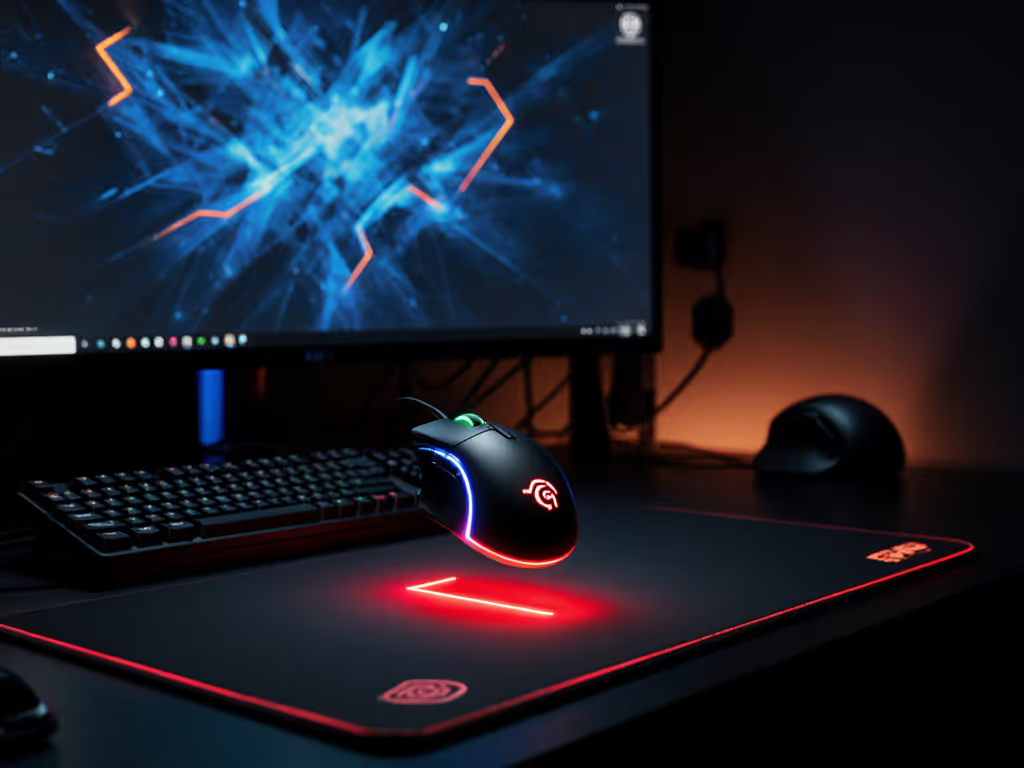
Gaming mouse lift-off distance and sensor lift-off distance explained form the foundation of predictable aiming. When your sensor knows exactly when to stop tracking, your hand gains control that translates directly into consistency. For weeks, I watched my crosshair drift during repositions, until I measured my lift-off distance and aligned it with my grip. Within days, the instability vanished. That's the quiet power of alignment: discomfort and error often point to the same root cause.
Lift-off distance (LOD) is the height at which your mouse sensor stops tracking movement once the mouse leaves the surface. This measurement typically ranges from 1 mm to 3 mm and directly shapes how your aim feels during long sessions. Most gamers chase DPI and polling rates, yet overlook LOD entirely (a costly blind spot). The right LOD keeps your crosshair exactly where you place it. The wrong one introduces phantom drift at the moment you need precision most. If jitter or drift persists, use our surface calibration guide to tune your sensor to your pad.
Understanding What LOD Actually Controls
Your mouse sensor works by rapidly photographing the mousepad surface below it. When you lift the mouse, the sensor continues capturing images until the distance becomes too great and the surface disappears from view. That threshold is your LOD. A low threshold stops tracking almost instantly; a high one lets the sensor track while the mouse is still several millimeters in the air.
This distinction matters because your aiming routine depends on controlled repositioning. In tactical shooters, you may reposition your mouse dozens of times per round. If your sensor continues tracking mid-air, the crosshair drifts unpredictably. When you place the mouse back down, it lands offset from where you intended. One offset rarely loses a fight, but the pattern compounds across a match, draining consistency and confidence.
Pain-free hands play steadier; comfort multiplies your precision.
LOD interacts with grip and sensitivity in ways many overlook. If you play on low sensitivity and lift frequently, a high LOD becomes a liability. If you play on mid to high sensitivity and rarely lift, a slightly higher LOD may suit you fine. The disconnect happens because players copy pro settings without measuring their own hand and routine.
Optimal LOD Settings by Your Play Style
LOD ranges exist for a reason: different games and mechanics demand different thresholds. Rather than chase a single "best" number, align LOD to your documented play pattern.
Arm Aim / Low Sensitivity (FPS, Tactical Shooters)
- Target LOD: 1.0-1.5 mm
- Reason: You lift frequently to reposition. Every lift must register cleanly to maintain crosshair predictability during flicks and recoil control.
- Test: If you feel your aim drifting during mid-range engagements, your LOD is too high.
Wrist Aim / Mid Sensitivity (FPS, Duelists)
- Target LOD: 1.5-2.0 mm
- Reason: You lift less often but still need precision. A slightly higher LOD forgives minor surface inconsistencies.
- Test: If landing after a flick feels abrupt or skips, LOD may be too low; raise it incrementally.
MOBA / RTS (Rapid Clicking, Large Camera Sweeps)
- Target LOD: 1.5-2.0 mm
- Reason: Balance speed and precision. Fast lifts during camera resets demand a cut-off that's neither too strict nor too loose.
Office / Casual Use
- Target LOD: 2.0-3.0 mm
- Reason: You lift infrequently and comfort takes priority. A forgiving LOD reduces the chance of accidental tracking loss on worn pads.
Notice the overlap: most gamers land in the 1.5-2.0 mm zone. That's not an accident, it is where stability and adaptability meet. However, your hand is the spec. Measure your grip width, identify whether you play arm-dominant or wrist-dominant, and then test within your zone.
How Sensor Type and Mousepad Shape Your LOD
A sensor's LOD isn't fixed in stone. Modern firmware and software expose LOD as a tunable setting with options like Low, Medium, or High, and some drivers display millimeter increments. However, the physical relationship between sensor and surface matters more than the software label.
Surface Calibration and Texture
A uniform cloth mousepad with fine, consistent texture delivers the most stable low LOD. The sensor reads a clean, predictable reflection. A rough or textured cloth pad can cause the sensor to flicker near the cut-off height, introducing jitter. A hard pad (glass or speed-focused plastic) reads more consistently but changes glide and sound, so the trade-off is tactile, not sensory error.
Sensor Technology
Optical sensors (which read reflections of light off the pad) vary in their cut-off precision. Entry-level sensors may have LOD around 2.6 mm; mid-range optical sensors sit around 1.6 mm; premium sensors often fall below 1 mm. Laser sensors (older generation) could reach up to 2 cm (poor for gaming) but are now rare in quality peripherals.
The practical takeaway: your mousepad and sensor combination already sets a baseline LOD range. You tune within that range, not outside it. Pairing a hard pad with a premium optical sensor and then setting LOD to 3 mm defeats the sensor's precision advantage.
Step-by-Step: How to Test and Adjust Your LOD
Adjustment requires a methodical loop. Change one variable at a time, recalibrate, and retest over at least 5-10 minutes of gameplay. Instant judgment misleads.
Step 1: Establish Your Baseline
Connect your mouse to your PC and open your mouse driver software. Locate the Lift-Off Distance (or LOD) setting (most drivers group this under Performance or Tracking). Note the current setting. If your driver shows labels (Low / Medium / High), record which one is active; if it shows millimeter increments, document the number.
Play three minutes of your main game (a deathmatch, a custom game, or a sensitivity warmup tool like Kovaak's). Pay attention to whether your crosshair drifts during repositions or if landing feels jumpy.
Step 2: Diagnose the Problem
Ask yourself:
- Does your crosshair drift or shift during lifts? → Your LOD is too high. Proceed to Step 3.
- Does landing cause a visible jump or skip in your crosshair? → Your LOD may be too low, or your landing distance needs tuning. Proceed to Step 4.
- Does the mouse feel stable and predictable? → Your LOD is dialed. Skip to Refinement (Step 5).
Step 3: Drift During Lifts (Lower Your LOD)
If your crosshair moves mid-air, the sensor is tracking longer than your repositioning requires.
- Lower LOD by one step (or 0.5 mm if your driver shows increments).
- Recalibrate the surface in your driver if the option exists. (This helps the sensor re-learn your mousepad's texture.)
- Play another 3-5 minutes of your main game, focusing on rapid repositions and flicks.
- If drift persists, lower LOD again and repeat.
- Stop when drift disappears or when further lowering causes landing jitter.
Note: Excessive lowering can cause the sensor to lose tracking intermittently on textured pads. If you notice dropouts, raise LOD slightly and clean your mousepad and mouse feet.
Step 4: Jump or Skip on Landing (Adjust Landing Distance)
A jumpy landing often points to landing distance (a separate setting in some drivers that controls how quickly the sensor resumes tracking after the mouse touches down).
- Check your driver for a "Landing Distance" or "Landing" slider.
- If present, lower it incrementally while keeping LOD constant.
- If not present, your LOD may genuinely be too low for your surface. Raise LOD by 0.5 mm and retest.
- Between adjustments, clean your mousepad and mouse feet; dust or debris can mimic tracking loss.
Step 5: Lock In Consistency
Once you've found a LOD that eliminates both drift and landing skip, play a full session (30-60 minutes) in your main game or a ranked environment. Notice whether your aim feels steadier and your crosshair more predictable during repositioning. If yes, mark this LOD as your baseline and return to it after any driver updates or pad replacements.
If you swap mousepad materials (cloth to hard, for example), repeat the test loop on the new surface (LOD often needs minor adjustment).
Practical Variables That Interact With LOD
LOD doesn't exist in isolation. Several factors amplify or diminish its impact.
DPI and Sensitivity
Keep your DPI and polling rate constant while you dial in LOD. If you're unsure how DPI/CPI actually affects aim, read our DPI vs CPI guide before making further changes. Changing these mid-adjustment muddles cause and effect. Once LOD feels stable, you can experiment with DPI, but treat them as separate tuning sessions.
Mouse Feet Thickness
Thicker mouse feet raise the sensor height, effectively lowering your LOD (because the sensor is now closer to the pad at a lower absolute height). If you replace your feet or add a skate upgrade, recalibrate your LOD setting.
Lighting Around Your Desk
Strong reflections or harsh shadows near your sensor window can confuse optical sensors at very low heights. See our lab-tested sensor lighting accuracy comparison to identify and fix problem setups. Adjust desk lighting or your monitor angle if you notice intermittent jitter at your target LOD.
Mousepad Wear
Old, flattened pads change surface texture and may cause inconsistent cut-offs. If you notice LOD instability after months of use, inspect your pad for wear. A fresh or well-maintained pad often resolves phantom drift.
Why Consistency Matters More Than Perfection
Many gamers obsess over hitting a specific LOD number (1.2 mm, for instance). That's misdirected energy. What matters is repeatable, predictable LOD on your actual surface, with your actual grip, in your actual games. A consistent 2.0 mm that feels clean beats a perfect 1.5 mm that jitters every other lift.
Consistency unlocks muscle memory. Your hand learns the exact moment the sensor cuts off, and your brain anticipates the landing position. This invisible rehearsal compounds across hundreds of repositions, tightening your overall control without conscious effort. That's the compounding return of alignment, not a single tweak, but a foundation that lets everything else improve.
Next Steps: Document and Refine
Once you've locked in your LOD, document it. Write down your LOD value, your mousepad model, your mouse model, and your grip style. If you play multiple games, test LOD in each one for 5-10 minutes; most gamers find the same LOD works across titles, but exceptions exist (e.g., some MOBA players prefer slightly higher LOD for rapid camera sweeps).
Further exploration awaits in adjacent tuning: surface calibration tools in your driver, debounce settings for clicks, and glide coefficient testing between different skate materials and pads. Each lever compounds the last. But LOD is the foundation, the moment your sensor and hand agree on when tracking stops, your aim gains the silence it needs to be sharp.
Start with a single session of diagnostic testing this week. Measure, adjust by one step, and play. Document what you find. That data becomes your personalized baseline, immune to marketing hype and forum hearsay. Your hand is the spec, measure it, listen to it, and let the numbers follow.
Related Articles