Gaming Mouse Multi-Sensory Tech: Comfort Meets Steady Control
By Ananya Rao • 7th Dec

Introduction: When Sensory Feedback Meets Steady Precision
The evolution of gaming mouse design has reached a critical inflection point where raw performance metrics no longer tell the whole story. Today's multi-sensory mouse technology integrates physical feedback systems that directly influence how our hands maintain neutral alignment during extended play sessions. This isn't about flashy extras; it's about how tactile feedback gaming systems translate to more consistent in-game mechanics. When your mouse communicates with your nervous system through calibrated haptics, pressure sensitivity, and ergonomic alignment, your hand stops fighting for stability and starts delivering precision. Pain-free hands play steadier; comfort multiplies your precision. This tutorial will guide you through evaluating these subtle but critical systems using body-aware measurements that reveal whether a mouse will support your mechanics or sabotage them.
Step 1: Map Your Hand Mechanics Before Considering Tech
Trace Your Foundation
Before assessing any sensory technology, establish your anatomical baseline with two simple measurements:
-
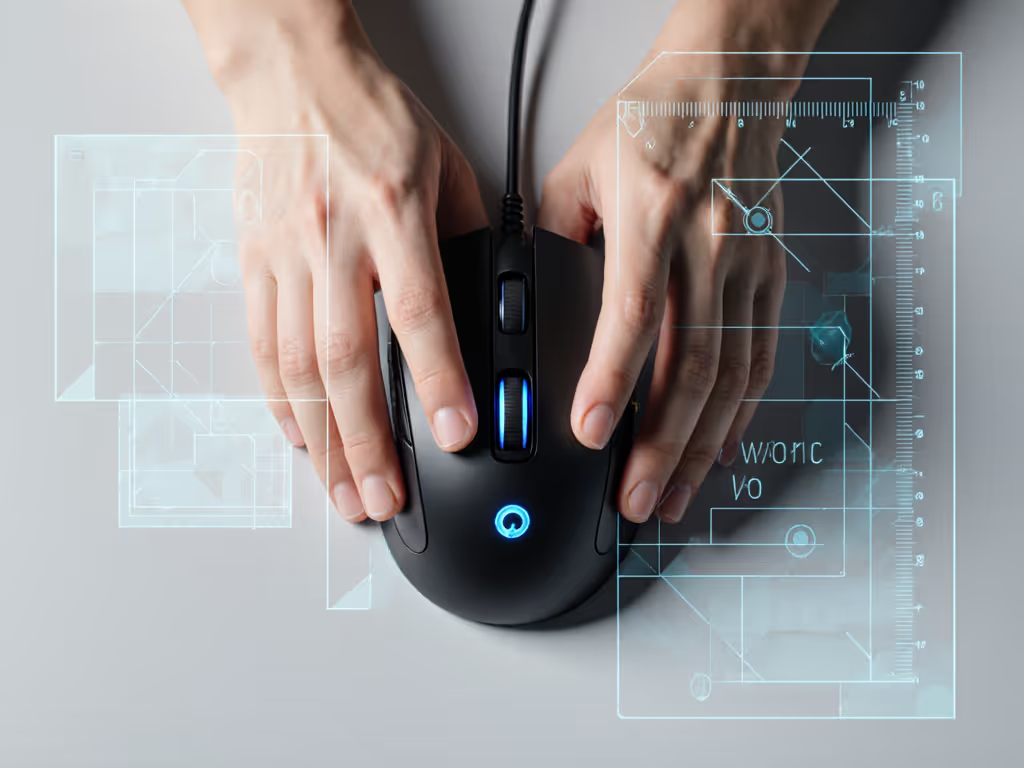
Palm width measurement: Place your dominant hand flat on paper, fingers together. Trace the outline while maintaining your natural grip posture (not stretched or compressed). Measure the widest point across your palm in millimeters.
-
Wrist-to-forefinger measurement: With your hand in pointer position (index on virtual mouse button), measure from your wrist crease to the tip of your forefinger.
These measurements form your baseline spec sheet. Your hand is the spec, not marketing claims or influencer preferences.
These numbers matter because multi-sensory features like haptic feedback and adjustable actuation only benefit you when your hand rests in neutral wrist alignment. For posture fundamentals and wrist-pain prevention by hand size, see our gaming mouse ergonomics guide. A mouse that forces deviation negates any technological advantage. For context: players with palm widths under 80mm often struggle with symmetrical mice that still contain right-hand bias in their button placements, while those over 95mm may need dedicated ergonomic shells to maintain neutral alignment.
Step 2: Evaluate Haptics Through the Lens of Neutral Posture
Decoding Gaming Mouse Haptics Integration
Modern mice incorporate gaming mouse haptics integration through: For a technical breakdown of vibration motors and tactile tuning, read our haptic feedback deep dive.
- Pressure-sensitive actuation with vibration feedback
- Tilt gesture confirmation through calibrated pulses
- Surface-specific feedback that adjusts to your pad material
Rather than testing these features in isolation, assess them while maintaining neutral wrist alignment:
- Rest your forearm fully on your desk
- Position your wrist in line with your forearm (not bent up/down or side-to-side)
- Activate haptic features while maintaining this position
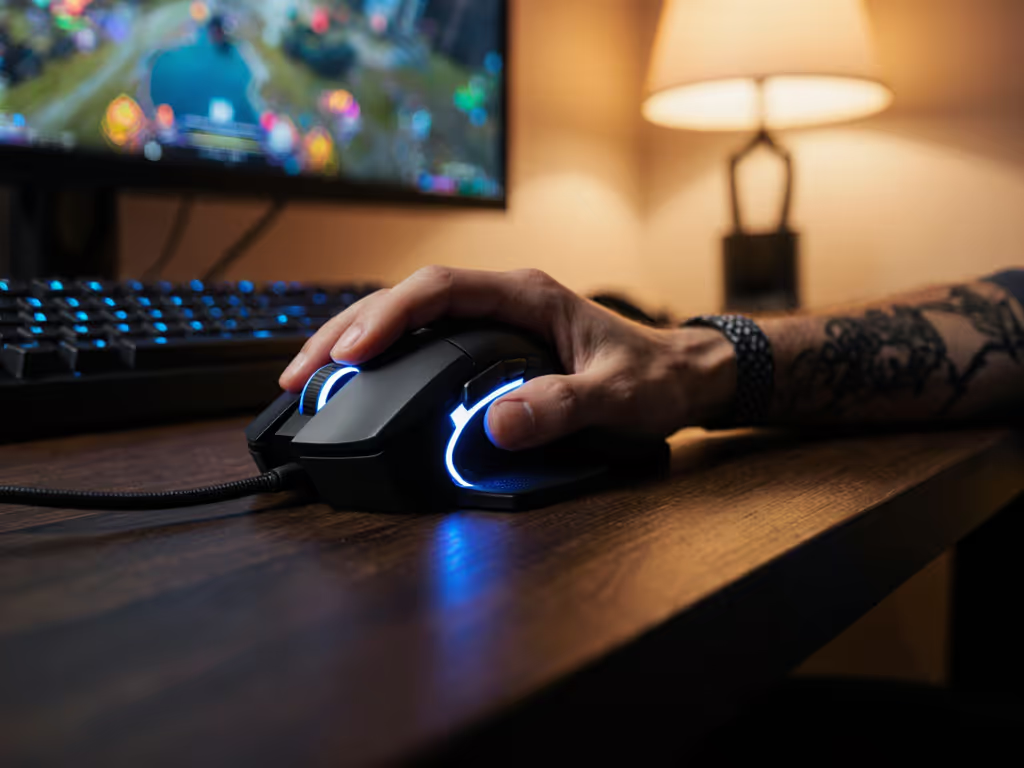
Does the feedback help you maintain consistent pressure? Or does it prompt micro-adjustments that disrupt your alignment? After weeks of burning forearms during long scrims, I traced my hand and switched from a tall right-leaning shell to a lower ambi with gentler flare. Within days, the pain subsided. My crosshair stopped drifting on holds. Comfort didn't slow me; my consistency and clutch rate quietly climbed.
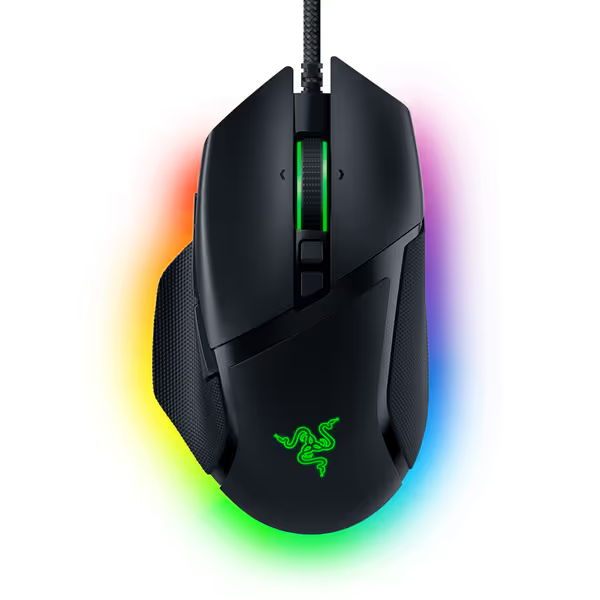
Razer Basilisk V3 Gaming Mouse
Ergonomic, customizable control for diverse hand sizes and demanding gameplay.
$29.44
Sensor26K DPI Optical
Sensor26K DPI Optical
Pros
Iconic ergonomic design with thumb rest for superior comfort.
11 programmable buttons for advanced customization and macros.
Cons
Scroll wheel functionality receives mixed feedback from users.
Requires Razer Synapse software for full customization.
Unbeatable quality, comfortable, smooth feel with improved texture, great customization. Well worth the price!
Unbeatable quality, comfortable, smooth feel with improved texture, great customization. Well worth the price!
Step 3: Align Interactive Display Functionality With Your Workflow
Data Visualization Without Distraction
Interactive display functionality like OLED screens serves two critical purposes beyond aesthetics: Learn how built-in displays deliver real-time stats without distraction in our display tech guide.
- Immediate confirmation of profile changes without software
- Visual feedback of click pressure/actuation points during calibration
Evaluate this feature through workflow integration:
- Set your DPI to match your in-game sensitivity
- Activate the display's pressure visualization mode
- Perform your most frequent in-game actions while observing the display
Does the information enhance your awareness without creating cognitive load? The display should reinforce proper technique, not become another distraction. Many players report improved consistency when they can immediately verify they've maintained proper click pressure during extended click-heavy scenarios, a concrete example of how tactile feedback gaming systems create measurable performance benefits.
Step 4: Test Cross-Platform Immersive Features For Real Consistency
Contextual Sensory Translation
Cross-platform immersive features like adaptive haptics that adjust between Windows/macOS or between game genres only matter if they maintain your established muscle memory. Test these features methodically:
- Create identical profiles across platforms
- Map your most critical actions to the same physical buttons
- Perform identical movement sequences in both environments
Notice whether the sensory feedback preserves your neutral wrist position. For profile management and reliability across Windows and macOS, see our G Hub vs Razer Synapse vs iCUE comparison. If your hand subtly adjusts to compensate for different feedback patterns, you're sacrificing consistency for novelty. The most valuable implementations maintain sensory language across contexts, your fingers should never need to "re-learn" what a correct action feels like.
Step 5: Build Your Personalized Sensory Threshold
Calibration Protocol for Steady Performance
Most multi-sensory mice offer adjustable parameters for haptic intensity, actuation points, and feedback timing. Rather than accepting defaults, establish your personal thresholds:
- Haptic intensity baseline: Start at minimum setting. Increase until you feel distinct confirmation without requiring conscious attention
- Actuation point calibration: Set marginally earlier than your natural click point
- Feedback duration: Short enough to avoid sensory overload during rapid inputs
This process creates a sensory environment where your nervous system receives precisely the information it needs to maintain consistent mechanics (nothing more, nothing less). Players who invest time in this calibration often report reduced micro-tremors during precision tasks and steadier tracking during extended gameplay. To dial in tracking consistency on your desk and pad, follow our surface calibration guide.
Conclusion: Steady Control Through Intentional Calibration
Multi-sensory mouse technology reaches its full potential only when synchronized with your body's natural mechanics. When haptics reinforce neutral alignment rather than compensate for poor posture, you unlock steadier crosshairs, tighter micro-adjustments, and sustainable performance across marathon sessions. Forget chasing specs that don't connect to your physical reality.
For those wanting to explore further, consider doing a weekly sensory calibration check: reset your mouse parameters to default, then re-calibrate using the protocols above. You'll likely discover subtle shifts in your optimal settings as your hand mechanics evolve with playtime. This practice keeps your gear in sync with your body's natural state (where true precision lives).
Related Articles